利用径向条形图探索华盛顿的徒步旅行

利用径向条形图探索华盛顿的徒步旅行

HsuHeinrich
发布于 2025-07-29 08:44:15
发布于 2025-07-29 08:44:15
利用径向条形图探索华盛顿的徒步旅行
import matplotlib as mpl
import matplotlib.pyplot as plt
import numpy as np
import pandas as pd

from matplotlib.cm import ScalarMappable
from matplotlib.lines import Line2D
from mpl_toolkits.axes_grid1.inset_locator import inset_axes
from textwrap import wrap
数据探索
以下数据如果有需要的同学可关注公众号HsuHeinrich,回复【数据可视化】自动获取~
data = pd.read_csv("https://raw.githubusercontent.com/HsuHeinrich/data-collection/master/graph/hike_data.txt", sep='\t')
data.head()
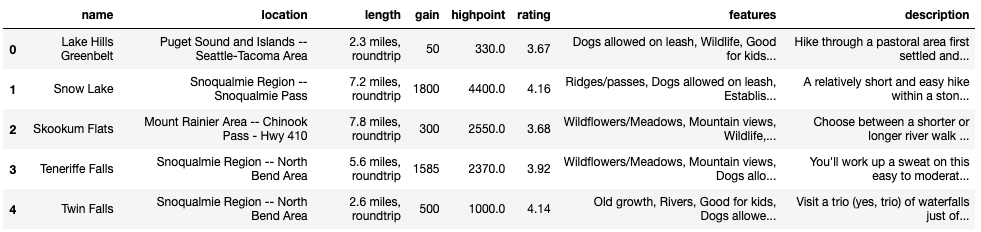
image-20240129174211858
image-20240129174211858
华盛顿徒步旅行数据集: name:徒步名称 location:地理位置 length:路线的全程距离,通常会以英里或者公里作为单位 gain:爬升高度,即徒步路线起点至终点之间的海拔上升量(Elevation Gain) highpoint:最高点 rating:徒步路线的评分,一般是由用户或者专家进行评价
# 提取地区
data["region"] = data["location"].str.split("--", n=1, expand=True)[0]
data["region"] = data["region"].str.strip()

# 提取英里
data["length_num"] = data["length"].str.split(" ", n=1, expand=True)[0].astype(float)

# 计算每个区域的累积长度和平均爬升高度
summary_stats = data.groupby(["region"]).agg(
    sum_length = ("length_num", "sum"),
    mean_gain = ("gain", "mean")
).reset_index()
# 四舍五入取整
summary_stats["mean_gain"] = summary_stats["mean_gain"].round(0)

# 计算每个区域数量
trackNrs = data.groupby("region").size().to_frame('n').reset_index()

# 合并数据
summary_all = pd.merge(summary_stats, trackNrs, "left", on = "region")
summary_all.head()
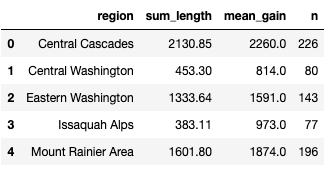
image-20240129174243636
image-20240129174243636
绘制基本的雷达图
# 按sum_length排序,获得排序后的bar
df_sorted = summary_all.sort_values("sum_length", ascending=False)

# x取值
ANGLES = np.linspace(0.05, 2 * np.pi - 0.05, len(df_sorted), endpoint=False)

# 长度
LENGTHS = df_sorted["sum_length"].values

# 平均爬升高度
MEAN_GAIN = df_sorted["mean_gain"].values

# 区域
REGION = df_sorted["region"].values

# 每个区域数量
TRACKS_N = df_sorted["n"].values
GREY12 = "#1f1f1f"

# 设置默认字体
plt.rcParams.update({"font.family": "Bell MT"})

# 字体颜色
plt.rcParams["text.color"] = GREY12

# Bell MT字体不支持minus,禁用
plt.rc("axes", unicode_minus=False)

# 颜色
COLORS = ["#6C5B7B","#C06C84","#F67280","#F8B195"]

# 颜色调色盘
cmap = mpl.colors.LinearSegmentedColormap.from_list("my color", COLORS, N=256)

# 标准化(颜色)
norm = mpl.colors.Normalize(vmin=TRACKS_N.min(), vmax=TRACKS_N.max())

# 标准化颜色并进行调色
COLORS = cmap(norm(TRACKS_N))
# 初始化布局(极坐标)
fig, ax = plt.subplots(figsize=(9, 12.6), subplot_kw={"projection": "polar"})

# 背景色
fig.patch.set_facecolor("white")
ax.set_facecolor("white")

ax.set_theta_offset(1.2 * np.pi / 2)
ax.set_ylim(-1500, 3500)


# 添加bar表示累积长度
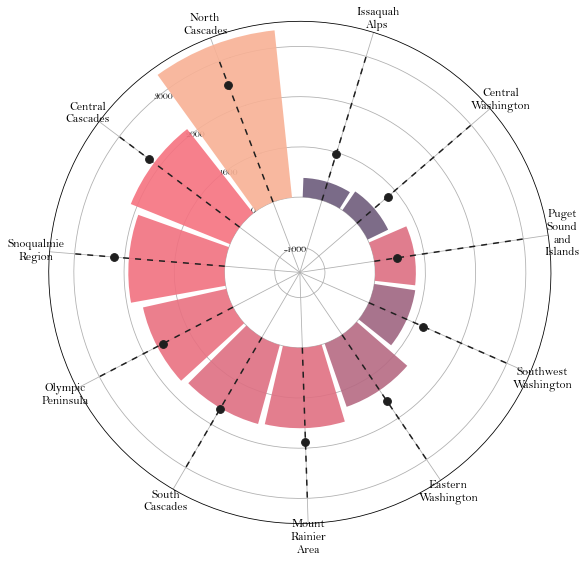
ax.bar(ANGLES, LENGTHS, color=COLORS, alpha=0.9, width=0.52, zorder=10)

# 添加垂直虚线,作为参考线
ax.vlines(ANGLES, 0, 3000, color=GREY12, ls=(0, (4, 4)), zorder=11)

# 添加点表示平均爬升高度
ax.scatter(ANGLES, MEAN_GAIN, s=60, color=GREY12, zorder=11)


# 为区域添加文本标签
# 一个单词最多需要5个连续字母,但不打断超过5个字母的单词
REGION = ["\n".join(wrap(r, 5, break_long_words=False)) for r in REGION]

# x轴设置
ax.set_xticks(ANGLES)
ax.set_xticklabels(REGION, size=12);
output_10_0
output_10_0
优化轴并添加注释
# 删除x轴(极坐标轴)网格线
ax.xaxis.grid(False)

# 设置y刻度
ax.set_yticklabels([])
ax.set_yticks([0, 1000, 2000, 3000])

# 去除边框
ax.spines["start"].set_color("none")
ax.spines["polar"].set_color("none")


# 调整x标签内边距
XTICKS = ax.xaxis.get_major_ticks()
for tick in XTICKS:
    tick.set_pad(10)


# 添加y标签注释
PAD = 10
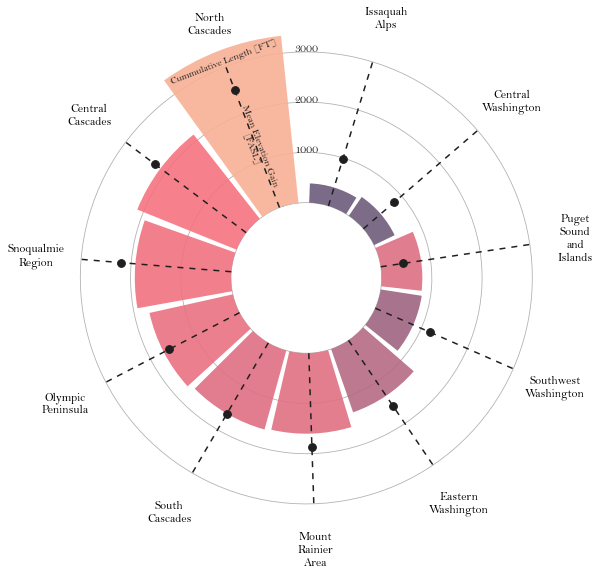
ax.text(-0.2 * np.pi / 2, 1000 + PAD, "1000", ha="center", size=12)
ax.text(-0.2 * np.pi / 2, 2000 + PAD, "2000", ha="center", size=12)
ax.text(-0.2 * np.pi / 2, 3000 + PAD, "3000", ha="center", size=12)


# 添加文本解释高度和点
ax.text(ANGLES[0], 3100, "Cummulative Length [FT]", rotation=21,
        ha="center", va="center", size=10, zorder=12)
ax.text(ANGLES[0]+ 0.012, 1300, "Mean Elevation Gain\n[FASL]", rotation=-69,
        ha="center", va="center", size=10, zorder=12)
fig
output_12_0
output_12_0
添加更多的信息
# 调整布局
fig.subplots_adjust(bottom=0.175)

# 插入轴(用于构造颜色bar)
cbaxes = inset_axes(
    ax,
    width="100%",
    height="100%",
    loc="center",
    bbox_to_anchor=(0.325, 0.1, 0.35, 0.01),
    bbox_transform=fig.transFigure
)

# 创建离散列表,并分配颜色
bounds = [0, 100, 150, 200, 250, 300]
norm = mpl.colors.BoundaryNorm(bounds, cmap.N)

# 构造颜色bar
cb = fig.colorbar(
    ScalarMappable(norm=norm, cmap=cmap),
    cax=cbaxes, # 使用上面插入的轴
    orientation = "horizontal",
    ticks=[100, 150, 200, 250]
)

# 删除颜色bar的轮廓
cb.outline.set_visible(False)

# 移除刻度线
cb.ax.xaxis.set_tick_params(size=0)

# 设置图例
cb.set_label("Amount of tracks", size=12, labelpad=-40)


# 添加额外的信息
# 调整布局
fig.subplots_adjust(top=0.8)

# 标题、副标题、说明信息
title = "\nHiking Locations in Washington"
subtitle = "\n".join([
    "This Visualisation shows the cummulative length of tracks,",
    "the amount of tracks and the mean gain in elevation per location.\n",
    "If you are an experienced hiker, you might want to go",
    "to the North Cascades since there are a lot of tracks,",
    "higher elevations and total length to overcome."
])
caption = "Data Visualisation by Tobias Stalder\ntobias-stalder.netlify.app\nSource: TidyX Crew (Ellis Hughes, Patrick Ward)\nLink to Data: github.com/rfordatascience/tidytuesday/blob/master/data/2020/2020-11-24/readme.md"

# 添加上面的文本信息
fig.text(0.1, 0.93, title, fontsize=25, weight="bold", ha="left", va="baseline")
fig.text(0.1, 0.9, subtitle, fontsize=14, ha="left", va="top")
fig.text(0.5, 0.025, caption, fontsize=10, ha="center", va="baseline")


fig
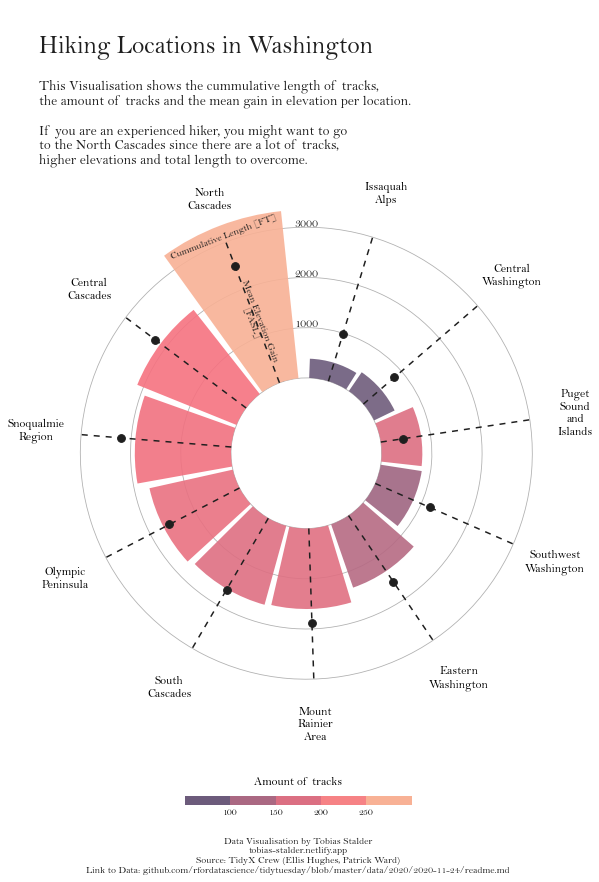
output_14_0
output_14_0
参考:Circular barplot with Matplotlib[1]
共勉~
参考资料
[1]
Circular barplot with Matplotlib: https://python-graph-gallery.com/web-circular-barplot-with-matplotlib/
本文参与 腾讯云自媒体同步曝光计划,分享自微信公众号。
原始发表:2025-07-28,如有侵权请联系 cloudcommunity@tencent.com 删除
评论
登录后参与评论
推荐阅读
目录
腾讯云开发者

Copyright © 2013 - 2026 Tencent Cloud. All Rights Reserved. 腾讯云 版权所有
深圳市腾讯计算机系统有限公司 ICP备案/许可证号:粤B2-20090059  粤公网安备44030502008569号
腾讯云计算(北京)有限责任公司 京ICP证150476号 | 京ICP备11018762号