
如何打印成PDF,而不是保存?“
应用程序版本:
Outlook: Microsoft 365企业应用程序
Acrobat:版本2022.001.20117
免责声明:
我的公司在Outlook中禁用了“另存为”功能。
请不要建议任何涉及".SaveAs“的VBA方法。
问题:
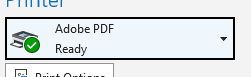
我想使用Adobe打印一封Outlook电子邮件到PDF (驱动程序?)打印机:
是我想要自动化的基本流程:
- 我将打开/选择要打印到PDF的电子邮件。
- 我将ctrl+P打印,然后选择Adobe作为打印机。
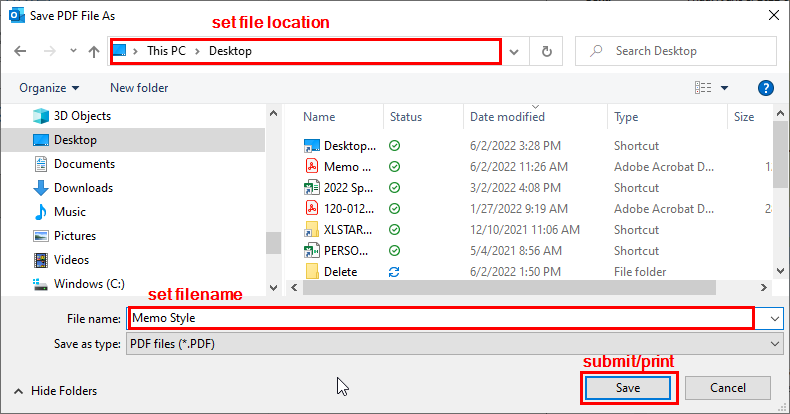
- 出现“将PDF文件保存为”对话框。
- 在对话中,设置保存位置,并设置文件名和提交
我编写了步骤1-3。第4步是我的问题从开始的地方。
我还没有找到一种方法来模拟对话盒的过程。
我尝试了AppActivate & SendKeys:代码运行,但随后它将焦点移回VBE,因此在打印对话框中没有做我需要做的事情。
我试图找到复制对话后端进程的VBA代码。我认为对话是Adobe的一个功能,所以很难找到VBA与这个过程对话。
我使用步骤4尝试使用变量设置保存位置,然后使用变量设置文件名字段,然后单击“保存”完成打印过程。
对话框和相关领域:
注意:我使用.SaveAsFile保存附件,因为MailItem.SaveAs不工作。
跳到标题为“打印/保存电子邮件为PDF”的代码标题,以获得好的内容:
Sub saveEmail()

'================================================================================
' Initialize variables
'================================================================================
    Dim olSelection As Outlook.selection
    Dim myItem As Outlook.MailItem
    Dim olAtt As Outlook.Attachment
    Dim olTempFolder As String
    Dim myDate As String: myDate = Year(Now) & Month(Now) & Day(Now) & _
                            Hour(Now) & Minute(Now) & Second(Now)
    Dim myPrinter As String

    ' Assign PDF printer to variable
    myPrinter = "Adobe PDF"

    ' Assign the window title of the save as pdf dialogue
    myDialogueTitle = "Save PDF File As"


'================================================================================
' Create email download path
'================================================================================
    ' Get the local temp folder path
    tempPath = ""
    tempPath = VBA.Environ("temp")

    ' Add Outlook Attachments subfolder to temp path
    olTempFolder = tempPath & "\Outlook Attachments"
    Debug.Print olTempFolder ' Print the folder path to immediate window

    ' If the path exists, check to make sure path is a directory, else create
    dirExists = Dir(olTempFolder, vbDirectory)
    If dirExists <> "" Then
        dirAttr = GetAttr(olTempFolder)

        ' Check if path is directory (attribute "16")
        If dirAttr <> 16 Then
            MsgBox "There is an error with the specified path. Check code " & _
                "try again."
        End If

    Else
    ' If folder does not exist, create
        MkDir (olTempFolder)

    End If

'================================================================================
' Create unique folder for this run
'================================================================================
    olTempFolder = olTempFolder & "\emailToPDF-" & myDate
    MkDir (olTempFolder)

'================================================================================
' Save attachments from selected email
'================================================================================

    Set olSelection = ActiveExplorer.selection
    Set myItem = olSelection.Item(1)

    For Each olAtt In myItem.Attachments
        attFullPath = olTempFolder & "\" & olAtt.DisplayName
            olAtt.SaveAsFile (attFullPath)
        Next
'===============================================================================
    ' Print/save email as
'================================================================================


    ' Set the default printer
    Set mynetwork = CreateObject("WScript.network")
    mynetwork.setdefaultprinter myPrinter

    ' Print the email
    myItem.PrintOut

    ' Send keystrokes to Save As dialogue
    AppActivate myDialogueTitle ' Activate the printer dialogue window

    SendKeys myDate, True ' Change file name to be saved
    SendKeys "{F4}", True ' Activate path text box
    SendKeys "^a", True ' Select all contents of path text box
    SendKeys "{DEL}", True ' Delete selected contents of text box
    SendKeys olTempFolder, True ' Set desired save path in the path location box
    SendKeys "{ENTER}", True ' Press enter to set the path
    SendKeys "{ENTER}", True ' Press enter to submit/save as

'================================================================================
'
'================================================================================

End Sub
同样,请不要提出涉及".SaveAs“方法的解决方案。我们的IT管理员在Outlook中禁用了此功能,因此调用它的VBA代码无法工作。
回答 2
Stack Overflow用户
发布于 2022-06-03 14:52:16
在代码中,我没有找到声明函数开头声明的Outlook对象的地方。
Dim olSelection As Outlook.selection
Dim myItem As Outlook.MailItem
Dim olAtt As Outlook.Attachment您似乎需要在Explorer窗口中获取当前选定的项。使用Selection类的Explorer属性,该属性返回一个选择对象,该对象包含在资源管理器窗口中选定的项。
Set myOlExp = Application.ActiveExplorer
Set myOlSel = myOlExp.Selection
For x = 1 To myOlSel.Count
If myOlSel.Item(x).Class = OlObjectClass.olMail Then 然后,您可以处理选定的项目。Word对象模型可用于处理消息体。有关详细信息,请参阅第17章:与项目机构合作。因此,您可以使用Document.SaveAs2方法,该方法使用新的名称或格式保存指定的文档。此方法的一些参数对应于“另存为”对话框(“文件”选项卡)中的选项。
此外,您可能会发现Document.ExportAsFixedFormat2方法,它将文档保存为PDF或XPS格式。
Stack Overflow用户
发布于 2022-06-03 14:30:08
为了处理“打印到pdf”对话框,请以下一种方式进行:
- 在模块顶部复制下一个API函数声明(在声明区域):
 Private Declare PtrSafe Function FindWindow Lib "user32" Alias "FindWindowA" _
                    (ByVal lpClassName As String, ByVal lpWindowName As String) As LongPtr
 Private Declare PtrSafe Function FindWindowEx Lib "user32" Alias _
            "FindWindowExA" (ByVal hwnd1 As LongPtr, _
            ByVal hwnd2 As LongPtr, ByVal lpsz1 As String, _
            ByVal lpsz2 As String) As LongPtr
    Private Declare PtrSafe Function SendMessage Lib "user32" Alias "SendMessageA" (ByVal hwnd As LongPtr, _
                                        ByVal wMsg As Long, ByVal wParam As LongPtr, lParam As Any) As Long
64位系统(VBA 7)有声明。它可以调整,以适用于两种情况。
- 使用这种方法处理对话框处理程序,更改pdf文件名并按
Save。
Sub handlePrintToPDF()
  Dim pdfHwnd As LongPtr, hwnd1 As LongPtr, hwnd2 As LongPtr, hwnd3 As LongPtr
  Dim hwndCombo As LongPtr, hwndEdit As LongPtr, hwndSave As LongPtr
  Dim tempPath, olTempFolder As String, myDate As String
    tempPath = VBA.Environ("temp")
    olTempFolder = tempPath & "\Outlook Attachments"
    myDate = Year(Now) & Month(Now) & Day(Now) & Hour(Now) & Minute(Now) & Second(Now) & ".pdf"

    Do While pdfHwnd = 0
        DoEvents
        pdfHwnd = FindWindow("#32770", "Save PDF File As"): Debug.Print Hex(pdfHwnd)
    Loop
    hwnd1 = FindWindowEx(pdfHwnd, 0, "DUIViewWndClassName", vbNullString): Debug.Print Hex(hwnd1)
      hwnd2 = FindWindowEx(hwnd1, 0, "DirectUIHWND", vbNullString): Debug.Print Hex(hwnd2)
        hwnd3 = FindWindowEx(hwnd2, 0, "FloatNotifySink", vbNullString): Debug.Print Hex(hwnd3)
          hwndCombo = FindWindowEx(hwnd3, 0, "ComboBox", vbNullString): Debug.Print Hex(hwndCombo)
           hwndEdit = FindWindowEx(hwndCombo, 0, "Edit", vbNullString): Debug.Print Hex(hwndEdit)

           Const WM_SETTEXT = &HC
           Dim pdfFileFullName: pdfFileFullName = olTempFolder & "\" & myDate


           SendMessage hwndEdit, WM_SETTEXT, 0&, ByVal "MyMail pdf" 'use here what you need as pdf docment to be saved name

           hwndSave = FindWindowEx(pdfHwnd, 0, vbNullString, "&Save"): Debug.Print Hex(hwndSave)
           Const WM_LBUTTON_DOWN = &H201, BM_CLICK = &HF5
           SendMessage hwndSave, WM_LBUTTON_DOWN, 0&, 0&
           SendMessage hwndSave, BM_CLICK, 0, ByVal 0&
End Sub- 在
myItem.PrintOut之后调用上面的子
handlePrintToPDF但是,启动打印窗口(从Outlook) 将阻止VBA。我用它作为Excel的自动化..。
https://stackoverflow.com/questions/72490088
复制相似问题
腾讯云开发者

Copyright © 2013 - 2026 Tencent Cloud. All Rights Reserved. 腾讯云 版权所有
深圳市腾讯计算机系统有限公司 ICP备案/许可证号:粤B2-20090059  粤公网安备44030502008569号
腾讯云计算(北京)有限责任公司 京ICP证150476号 | 京ICP备11018762号