打工人的保发秘籍:Word 文档在线预览选型
原创
打工人的保发秘籍:Word 文档在线预览选型
原创
用户12805970
发布于 2026-11-10 09:41:20
发布于 2026-11-10 09:41:20
兄弟们,文档在线预览这个大坑,我持续再趟。为了不让我们的服务器和头发一起面临“秃”如其来的危机,今天我们准备了三条锦囊妙计:既有靠钞能力摆平一切的商业大佬 OfficeWeb365 集成,也有全靠前端用爱发电、零成本白嫖的纯前端解析渲染绝招。
无论你是预算拉满、只想早点下班,还是手头紧迫、全靠代码硬扛,总有一款解药适合你。下面,就让我们带上键盘,正式进入这趟保住发际线的技术选型之旅!
方案一:OfficeWeb365 第三方集成方案
OfficeWeb365 是一款国内主流的商业文档在线预览服务商。它免去了企业自建和维护服务器的痛苦,同时提供了极高的高保真渲染能力以及丰富的安全特性(如动态水印、禁止复制)。
OfficeWeb365 支持极简的 URL 拼接接入,你可以将其直接嵌入到系统的 <iframe> 中。
<!DOCTYPE html>
<html lang="zh-CN">
<head>
    <meta charset="UTF-8">
    <title>OfficeWeb365 在线预览示例</title>
    <style>
        body, html { margin: 0; padding: 0; height: 100%; overflow: hidden; }
        .preview-container { width: 100%; height: 100vh; border: none; }
    </style>
</head>
<body>

    <!-- 预览容器 -->
    <iframe id="preview-iframe" class="preview-container" src=""></iframe>

    <script>
        // 1. 定义你的 OfficeWeb365 域名(通常官方会提供分配的域名)
        const owServer = "https://officeweb365.com";

        // 2. 你的专属 AppId
        const appId = "YOUR_APP_ID";

        // 3. 需要预览的 Word 文档公网可下载地址(必须经过 URL 编码)
        const fileUrl = encodeURIComponent("https://yourdomain.com");

        // 4. 可选高级安全参数(根据官方 API 文档调整)
        const options = [
            `furl=${fileUrl}`,           // 文件地址
            `db=1`,                      // 限制下载 (1为禁止, 0为允许)
            `cv=1`,                      // 限制复制 (1为禁止, 0为允许)
            `w=1`,                       // 开启水印 (1为开启)
            `wn=${encodeURIComponent("机密文件请勿外传")}`, // 水印文字
            `wc=rgba(200,200,200,0.3)`   // 水印颜色及透明度
        ];

        // 5. 拼接最终的预览地址并赋值给 iframe
        const finalSrc = `${owServer}?${options.join('&')}`;
        document.getElementById('preview-iframe').src = finalSrc;
    </script>
</body>
</html>
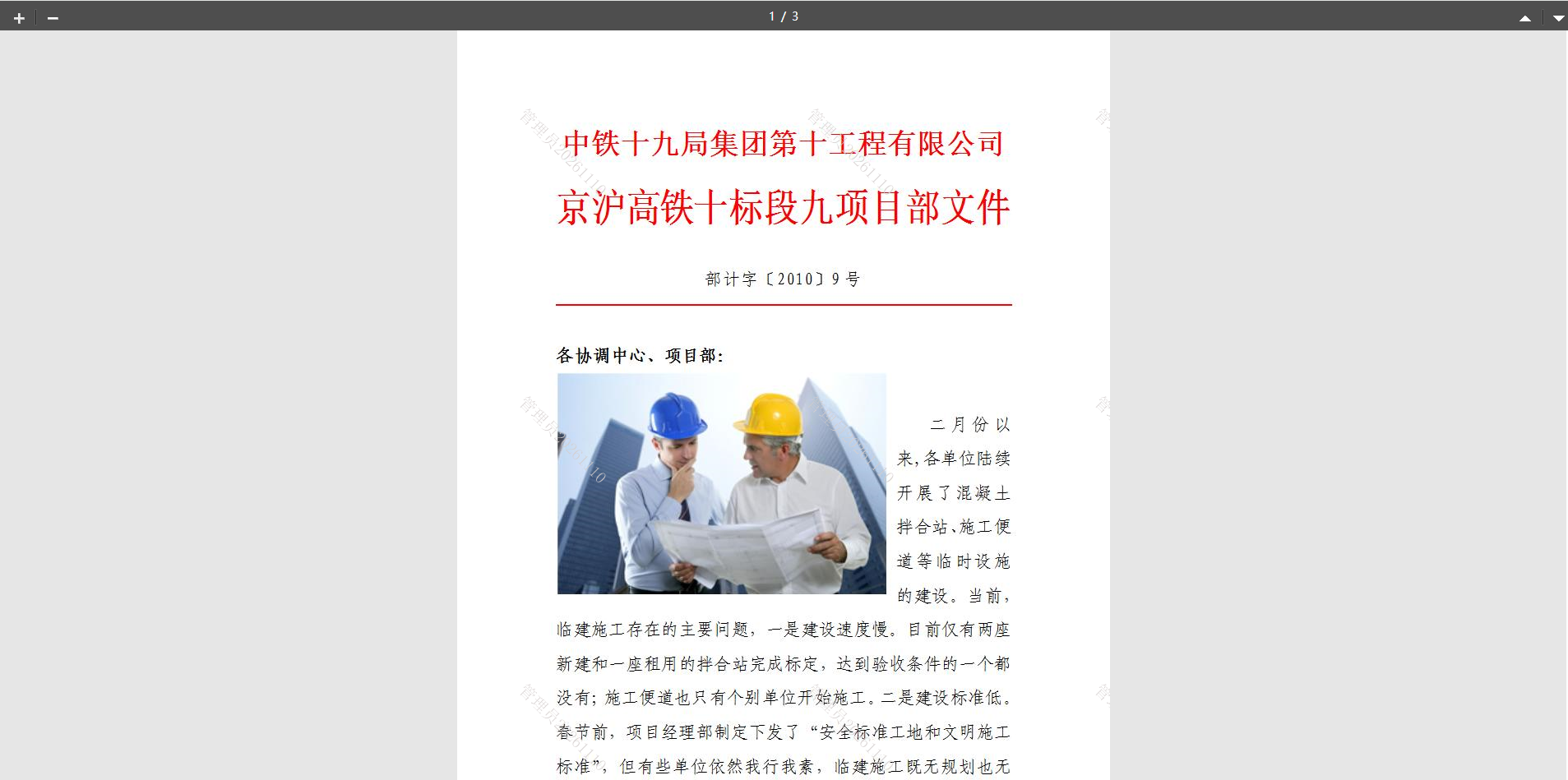
方案二:纯前端解析渲染代码(支持 Vue / React 逻辑)
如果项目只需支持 .docx格式,并且不能依赖外部网络或第三方付费服务,docx-preview是目前前端最优秀的开源库。它直接在浏览器解压 .docx文件(实质是 XML 压缩包),然后利用原生 DOM 节点渲染 Office 样式。
1. 环境准备
在你的 Vue 或 React 项目中安装依赖:
npm install docx-preview2. 完整实现代码(以原生 JS / Vue 逻辑为例)
下面的代码演示了如何通过 文件下载链接(以 Blob 流形式) 或 用户本地上传(File 对象) 来实现纯前端预览。
<!DOCTYPE html>
<html lang="zh-CN">
<head>
    <meta charset="UTF-8">
    <title>纯前端 docx-preview 预览示例</title>
    <!-- 引入 docx-preview 所需的 js-zip 依赖及自身(若是模块化项目可用 import) -->
    <script src="https://unpkg.com"></script>
    <script src="https://unpkg.com"></script>
    <style>
        .actions { padding: 10px; background: #f5f5f5; border-bottom: 1px solid #ddd; }
        /* 预览容器样式:必须指定宽度或高度,建议有滚动条 */
        #preview-body {
            width: 100%;
            height: calc(100vh - 60px);
            overflow-y: auto;
            background-color: #525659; /* 模拟 PDF 阅读器的深色背景 */
            padding: 20px 0;
        }
        /* 定制 docx-preview 渲染出的文档阴影,使其更像 Word 界面 */
        .docx-wrapper {
            background-color: transparent !important;
            padding: 0 !important;
        }
        .docx {
            box-shadow: 0 4px 12px rgba(0,0,0,0.3);
            margin: 0 auto 20px auto !important;
        }
    </style>
</head>
<body>

    <div class="actions">
        <button onclick="previewRemoteFile()">预览远程服务器的 .docx</button>
        <input type="file" id="file-input" accept=".docx" onchange="previewLocalFile(this)">
        <span style="color: red; margin-left: 10px; font-size: 13px;">*仅支持 .docx 格式</span>
    </div>

    <!-- 渲染挂载的目标容器 -->
    <div id="preview-body"></div>

    <script>
        const container = document.getElementById('preview-body');

        // 配置参数:控制页边距、实验性功能等
        const docxOptions = {
            className: "docx",           // 默认页面的 className
            inWrapper: true,             // 是否使用 wrapper 包裹
            ignoreWidth: false,          // 禁止忽略 Word 设定的宽度
            ignoreHeight: false,         // 禁止忽略 Word 设定的高度
            debug: false                 // 开启调试模式
        };

        /**
         * 场景 A:预览远程服务器上的 Docx 文件流
         */
        function previewRemoteFile() {
            const fileUrl = 'https://example.com'; // 替换为真实的后端文件流/下载接口

            container.innerHTML = '<p style="color:white; text-align:center;">文件解析中,请稍候...</p>';

            // 使用 fetch 请求获取 Blob 数据流
            fetch(fileUrl)
                .then(response => {
                    if (!response.ok) throw new Error("文件下载失败");
                    return response.blob();
                })
                .then(blob => {
                    // 调用 docx-preview 核心渲染方法
                    return docx.renderAsync(blob, container, null, docxOptions);
                })
                .then(() => {
                    console.log("docx-preview: 远程文档渲染成功");
                })
                .catch(err => {
                    container.innerHTML = `<p style="color:red; text-align:center;">渲染失败: ${err.message}</p>`;
                });
        }

        /**
         * 场景 B:预览用户通过 <input type="file"> 本地上传的文档
         */
        function previewLocalFile(input) {
            const file = input.files;
            if (!file) return;

            container.innerHTML = '<p style="color:white; text-align:center;">本地文件解析中...</p>';

            // 直接将 File 对象传入渲染函数(File 继承自 Blob)
            docx.renderAsync(file, container, null, docxOptions)
                .then(() => {
                    console.log("docx-preview: 本地文档渲染成功");
                })
                .catch(err => {
                    container.innerHTML = `<p style="color:red; text-align:center;">渲染失败: ${err.message}</p>`;
                });
        }
    </script>
</body>
</html>
原创声明:本文系作者授权腾讯云开发者社区发表,未经许可,不得转载。
如有侵权,请联系 cloudcommunity@tencent.com 删除。
目录
腾讯云开发者

Copyright © 2013 - 2026 Tencent Cloud. All Rights Reserved. 腾讯云 版权所有
深圳市腾讯计算机系统有限公司 ICP备案/许可证号:粤B2-20090059  粤公网安备44030502008569号
腾讯云计算(北京)有限责任公司 京ICP证150476号 | 京ICP备11018762号